From “WSL 2 Is Stuck on 172.28.x.x” → “My Kali Box Shows Up on the Real LAN”
From “WSL 2 Is Stuck on 172.28.x.x” → “My Kali Box Shows Up on the Real LAN”
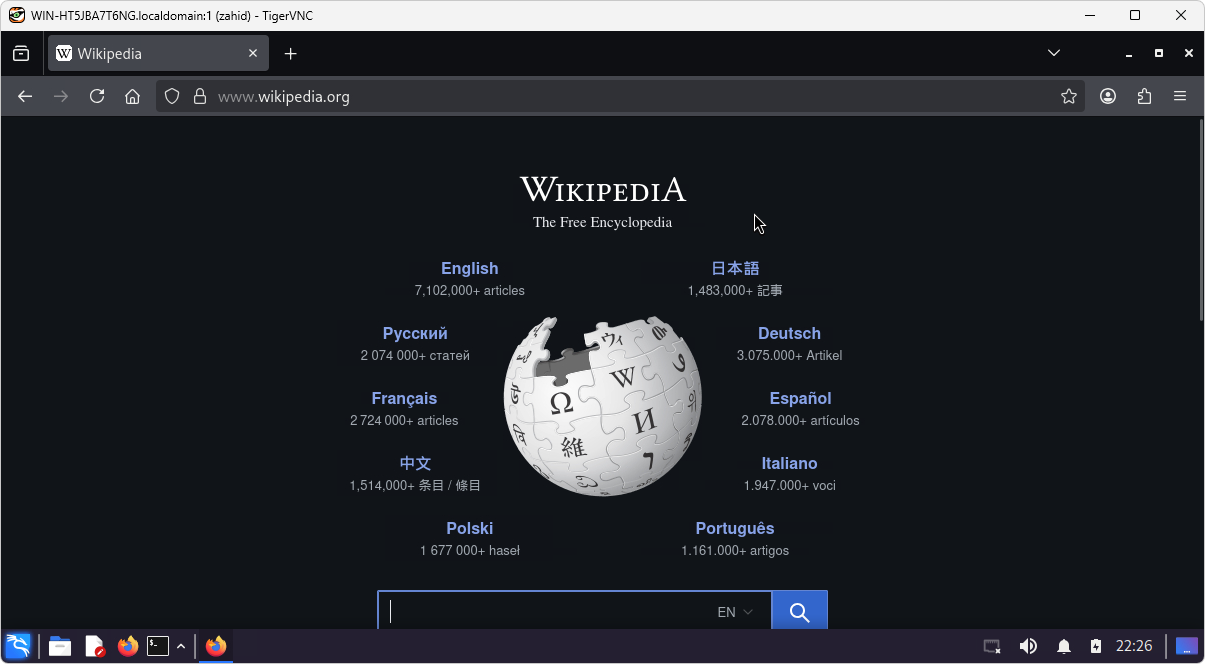
🎯 Finally Linux inside WSL2 sees the Internet
1️⃣ Why the Default WSL 2 Network Is “Stubborn”
| Feature | Default behavior in WSL 2 |
|---|---|
| Virtual NIC | eth0 attached to Hyper‑V internal switch (WSL switch) |
| IP range | VM gets 172.28.0.0/12 (e.g., 172.28.176.1) |
| Routing | Traffic NAT‑ed through host’s network stack |
| Result | VM reaches Internet, but LAN devices cannot reach it directly |
Because the switch is internal, the VM is isolated. To make it behave like a regular PC, replace the internal switch with an External Hyper‑V switch (bridged networking).
2️⃣ What “Bridged” Actually Means (and Why You Need It)
- VM NIC attaches directly to physical adapter (Wi‑Fi/Ethernet).
- VM receives a real LAN IP from router DHCP.
- Other machines can ssh/ping/open services without port‑forwarding.
- DNS works automatically.
- LAN‑only services (SMB, multicast, mDNS) become reachable.
Note that: Bridging requires enabling the full Hyper‑V role and creating an External virtual switch.
3️⃣ Prerequisites – What Must Be in Place First
Windows edition: Windows 11 Pro/Enterprise/Education →
systeminfoVirtualization support: VT‑x/AMD‑V enabled →
systeminfoHyper‑V feature installed:
1
2
Get-WindowsOptionalFeature –Online –FeatureName Microsoft-Hyper-V-All
Enable-WindowsOptionalFeature -Online -FeatureName Microsoft-Hyper-V-All -NoRestart
Administrator rights: Run PowerShell as Administrator.
Physical NIC name:
Get-NetAdapter
4️⃣ Step‑by‑Step: Create an External Switch & Tell WSL to Use It
Run all commands in Windows PowerShell (Admin)
4.1 Create/verify external Hyper‑V switch
1
2
3
4
5
6
7
8
9
10
Get-NetAdapter | Where-Object {$_.Status -eq "Up"} | Format-Table Name, InterfaceDescription, MacAddress

$AdapterName = "Wi‑Fi"
$SwitchName  = "ExternalWSL"

if (-not (Get-VMSwitch -Name $SwitchName -ErrorAction SilentlyContinue)) {
    New-VMSwitch -Name $SwitchName -NetAdapterName $AdapterName -AllowManagementOS $true
} else {
    Write-Host "Switch already exists"
}
4.2 Write global .wslconfig
1
2
3
4
5
6
$cfgPath = "$env:USERPROFILE\.wslconfig"
@"
[wsl2]
networkingMode = bridged
vmSwitch = $SwitchName
"@ | Set-Content -Path $cfgPath -Encoding UTF8
4.3 Shut down WSL
1
2
wsl --shutdown
Get-Process vmmem -ErrorAction SilentlyContinue | Stop-Process -Force
4.4 Start distro fresh
1
wsl -d kali-linux
5️⃣ Validate – Is Your VM Actually on the LAN?
Inside Linux:
1
2
3
4
5
ip -br a show eth0   # expect 192.168.x.x
ping -c 2 192.168.1.1
ping -c 2 8.8.8.8
ping -c 2 google.com
sudo apt update
6️⃣ Troubleshooting – The “It Still Shows 172.28.x.x” Checklist
- External switch bound →
Get-VMSwitch -Name ExternalWSL .wslconfigcontent correct →Get-Content "$env:USERPROFILE\.wslconfig" -Raw- WSL read config →
wsl.exe--status - No conflicting
/etc/wsl.confinside distro. - VM shut down properly.
- Encoding/BOM issue → recreate file with
Set-Content -Encoding UTF8. - Group Policy removing file → check after logon.
7️⃣ Optional Extras – Making the Bridged VM Even More Useful
- Lock
.wslconfig:attrib +R "$env:USERPROFILE\.wslconfig" - Allow inbound SSH:
netsh advfirewall firewall add rule name="WSL SSH inbound" dir=in action=allow protocol=TCP localport=22 - Expose web service:
netsh advfirewall firewall add rule name="WSL HTTP 8080" dir=in action=allow protocol=TCP localport=8080 - Run Docker:
sudo apt install -ydocker.io - Run GUI apps: WSLg already included.
- Run VPN:
sudo apt install -y openvpn - Add static IP: configure
/etc/netplan/01-static.yaml. - Switch back to NAT: delete
.wslconfigand restart WSL.
8️⃣ How to Switch Back to Default NAT
1
2
3
Remove-Item "$env:USERPROFILE\.wslconfig"
wsl --shutdown
wsl -d kali-linux
9️⃣ Wrap‑Up & Quick Reference Cheat‑Sheet
1
2
3
4
5
6
7
8
9
10
11
12
13
14
15
16
17
18
$AdapterName = "Wi‑Fi"
$SwitchName  = "ExternalWSL"

if (-not (Get-VMSwitch -Name $SwitchName -ErrorAction SilentlyContinue)) {
    New-VMSwitch -Name $SwitchName -NetAdapterName $AdapterName -AllowManagementOS $true
}

$cfgPath = "$env:USERPROFILE\.wslconfig"
@"
[wsl2]
networkingMode = bridged
vmSwitch = $SwitchName
"@ | Set-Content -Path $cfgPath -Encoding UTF8

wsl --shutdown
Get-Process vmmem -ErrorAction SilentlyContinue | Stop-Process -Force

wsl -d kali-linux
Inside distro:
1
2
3
4
ip -br a show eth0
ping -c 2 8.8.8.8
ping -c 2 google.com
sudo apt update
This post is licensed under CC BY 4.0 by the author.