Installing Tauri Without the Heavy Microsoft C++ Build Tools
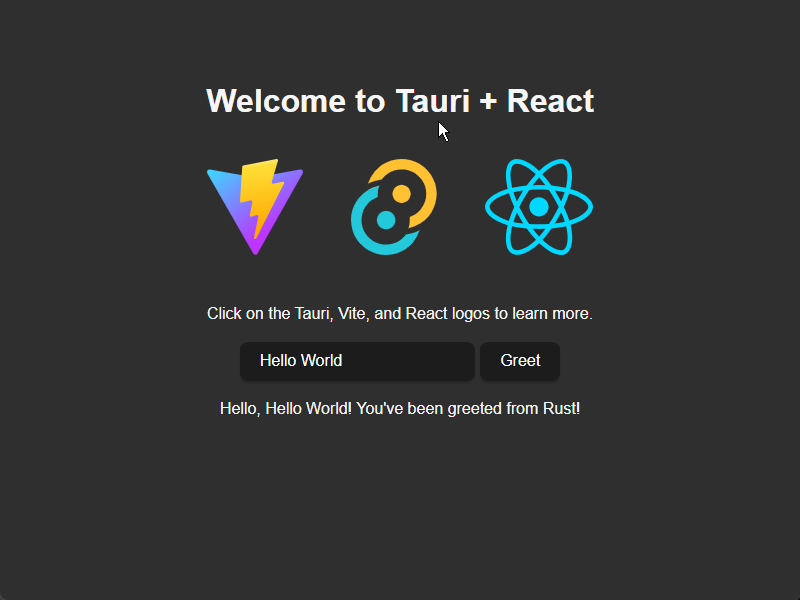
🎯 Introducton: Part-2
Installing Tauri can sometimes be daunting due to the large Microsoft C++ Build Tools requirement, which can be around 8 GB. However, there are ways to bypass this and keep your setup lightweight.
😟 Why Avoid the Full Microsoft C++ Build Tools?
- The full Visual Studio workload for C++ development is large and includes many components unnecessary for Tauri.
- It consumes significant disk space and installation time.
- Tauri only needs a linker and compiler, not the entire IDE.
🛫 Lightweight Setup for Tauri on Windows
🛠️ Step 1: Install MinGW-w64 separately
- Download and install MSYS2.
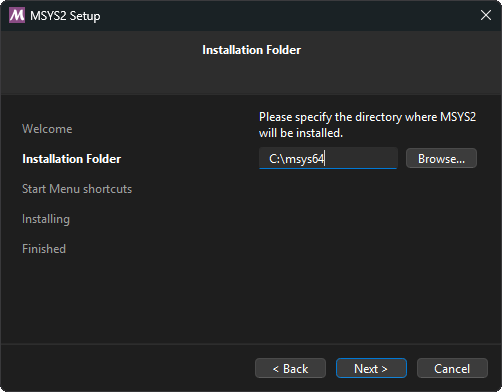
- When done, click Finish.
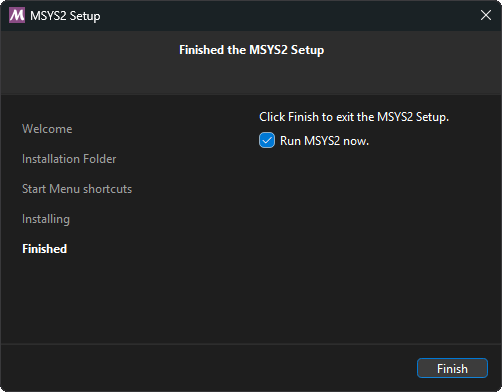
- a terminal will launch.
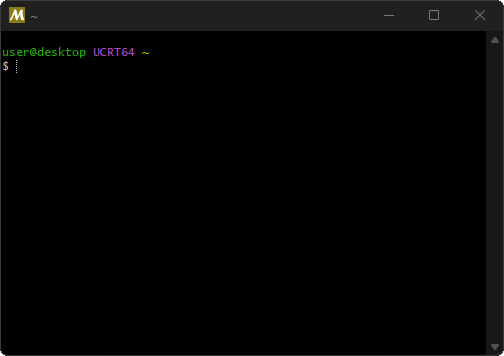
- Run the following commands in that terminal:
1
2
pacman -S mingw-w64-x86_64-gcc
pacman -S mingw-w64-x86_64-crt
- Add its
binfolder to your PATH sogccandg++are available. - This is usually under 300 MB, much smaller than 8 GB.
🌐 Step 2: Install WebView2
Tauri heavily depends on WebView2 to render web content on Windows, therefore you must have WebView2 installed. The easiest way is to download and run the Evergreen Bootstrapper from Microsoft’s website.
🦀 Step 3:Install Rust with the GNU toolchain
- Install Rust as usual using rustup-init.exe.
- On Windows, rustup defaults to x86_64-pc-windows-msvc. Run
1
rustup show
it will display active host which is MSVC. 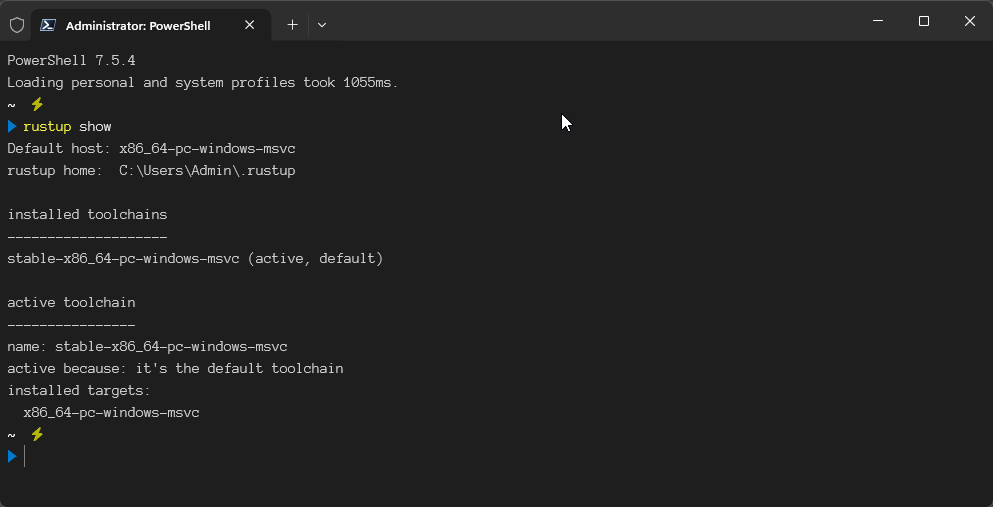
- In order to use GNU toolchain, run
1
rustup target add x86_64-pc-windows-gnu
then set it as default:
1
rustup default stable-x86_64-pc-windows-gnu
Run again rustup show to confirm.
⚡ Step 4:Install Node.js
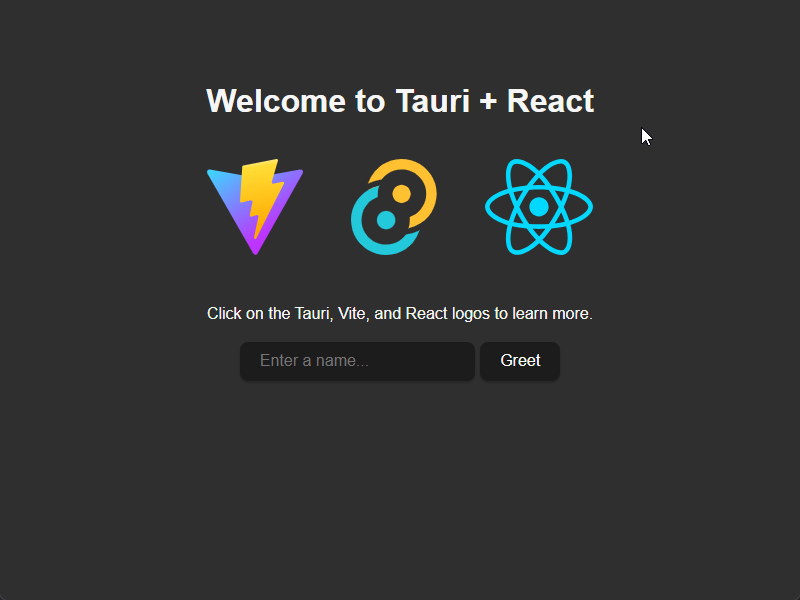
Create Tauri app
1
2
3
4
5
npm create tauri-app@latest
cd <project>
npm install
npm run tauri dev
npm run tauri build
However every lean setup comes with trade‑offs. Here are some of the most important ones:
W64devkitsaves disk space by stripping down libraries, but then you hit missing pieces likelibgcc_eh.- MSVC is heavier, yet it’s complete and stable, which is why it’s the recommended path for Tauri. smoother integration with Windows APIs, fewer missing libraries, and official support from Rust + Tauri.
At first I tried with MinGW that comes with W64devkit portable build tools, but it didn’t work. while⚠️building the app, it gave me the error
1
D:\MinGW\w64devkit\bin/ld.exe: cannot find -lgcc_eh: No such file or directory
My immediate fix was to switch from w64devkit to MSYS2. MSYS2 ships with a complete MinGW toolchain, so it solved the missing library problem right away. That’s a perfectly valid solution if you want to stay in the GNU ecosystem. But here’s the bigger picture: Tauri’s documentation and Rust’s ecosystem recommend the MSVC toolchain for Windows builds. MSVC avoids these kinds of surprises altogether and integrates more smoothly with Windows APIs. So while MSYS2 got me past the error in the moment, MSVC is the long‑term path I’d suggest for anyone starting fresh. Switching to MSVC:
1
rustup default stable-x86_64-pc-windows-msvc
Lessons Learned
- Minimal toolchains: save space, but risk missing critical components.
- Full toolchains (MSVC): heavier, but complete and reliable.
- MinGW can be used for experimentation, but expect extra troubleshooting.
- The trade‑off: disk space vs. peace of mind.
📌 Final Recommendation
- If you’re troubleshooting the
-lgcc_eherror, switching from w64devkit to MSYS2 will solve the immediate linking issue. - But for long‑term stability and fewer surprises, the MSVC toolchain is the recommended path for Tauri apps on Windows.