The Group Policy and The Registry
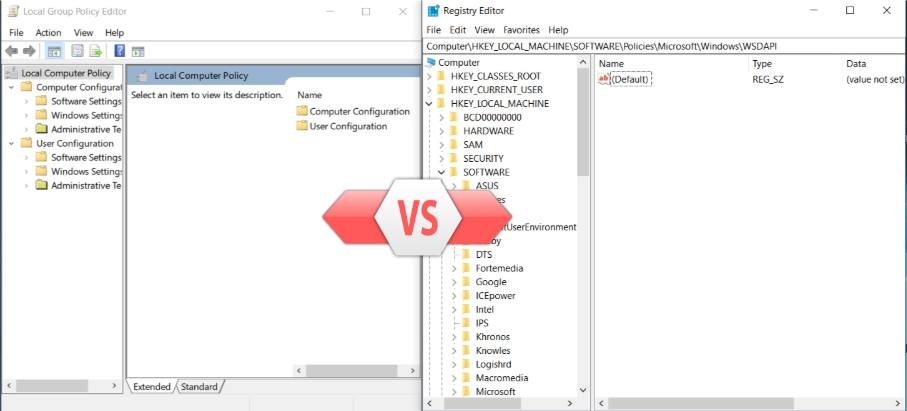
📜 Group Policy vs 💻 Registry
Whenever we face some problems we search in the internet and probably found solution that involve editing particular group policy or changing registry values. Some times we found easy method .reg file just double clicking on it and problem solved or powershell command that we blindly execute to solve the problem.
What they are actually?
In short, the Group Policy and the Registry Editor are tools used for tweaking system configuration.Group Policy functions as a user-friendly management layer that ultimately writes its settings to the Windows Registry. Most Group Policy settings are just “Administrative Templates” for specific Registry keys. When we “Enable” a policy in the Local Group Policy Editor , Windows creates the corresponding Registry entry automatically.
- Group Policy is like a friendly interface that sets rules.
- Under the hood, those rules are stored as Registry keys/values.
- That’s why changing a GPO often results in a new entry under ‘HKLM\Software\Policies’ or ‘HKCU\Software\Policies’.
The Enforcement Order: Preference
If a setting is configured in both tools, Group Policy generally takes precedence. This means if you change a Registry key manually, but a GPO says otherwise (not the not configured state), the system will eventually revert your change back to the GPO’s value during its next refresh cycle. Then the question arises what if I change a registry value while group policy untouched, then since group policy has higher preference, registry settings should be revert back, the answer is in next paragraph.
The “Not Configured” State
Most Group Policy settings are set to “Not Configured state” by default. In this state, the Group Policy engine ignores that specific Registry key entirely. It does not “hold” an old value; it simply doesn’t send any instructions to the Registry, allowing your manual changes persist.
What goes Where: Architecture of Registry
- Database: A central repository for all system settings, replacing older .ini files.
- Hierarchical Tree: Data is organized like folders and files, making it navigable.
- Keys & Subkeys: Think of these as folders within the tree, holding related settings.
- Values: These are the actual data points (like font size, program location) stored inside keys.
- Hives: Major sections (e.g., HKEY_LOCAL_MACHINE)
Registry Hives
Root Hives(top-level containers):HKEY_LOCAL_MACHINE(HKLM) → Machine-wide settings (applies to all users).HKEY_CURRENT_USER(HKCU) → Settings for the logged-in user.HKEY_CLASSES_ROOT→ Settings for the logged-in user.HKEY_CLASSES_ROOT(HKCR) → File associations and COM objects.HKEY_USERS(HKU) → Profiles for all users on the system.HKEY_CURRENT_CONFIG(HKCC) → Hardware profile currently in use.
Registry Keys and Values
- Keys = folders.
- Values = actual settings (strings, numbers, binary).
- Example: HKCU\Software\Microsoft\Windows\CurrentVersion\Explorer controls Explorer behavior.
Accessing the Registry
To access or modify the Registry, you need to use the Registry Editor. Type win+R to open run box and type regedit to open the Registry Editor.