Demystifying Hidden git folder

Every Git repository has a secret core: the hidden .git folder. It’s where all the magic happens — commits, branches, tags, and configuration live here, quietly powering your version control. While most developers interact with Git through commands, understanding what’s inside this folder gives you deeper insight into how Git really works. Let’s lift the lid and explore.
Contents of .git folder
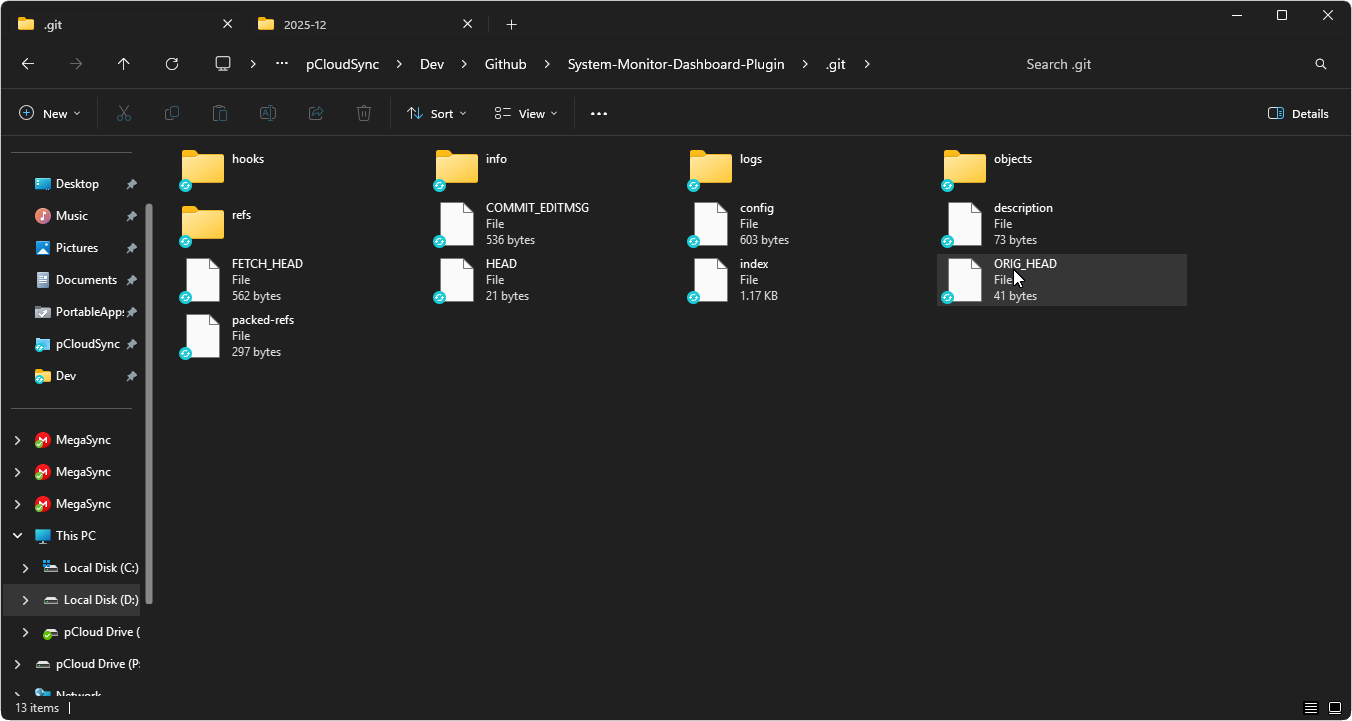
If you’ve ever peeked inside a Git repository, you’ve probably noticed a mysterious hidden folder called ‘.git’ It’s the beating heart of version control — storing everything Git needs to track your project’s history. Let’s open the box and see what’s inside. Inside .git, you’ll find:
🔍 What Lives Inside .git folder:
objects/→ stores all commits, files, and versions as snapshots.refs/→ pointers to branches and tags.Head→ tells Git which branch you’re currently on.config→ repository-specific settings.logs/→ records of branch and commit activity. Think of it as Git’s brain: objects are the memory, refs are the bookmarks, and config is the personality.
⚙️ The Config File
One of the most important files inside .git is config. It defines how Git behaves for your repository. Let’s break down two key settings you’ll often encounter. 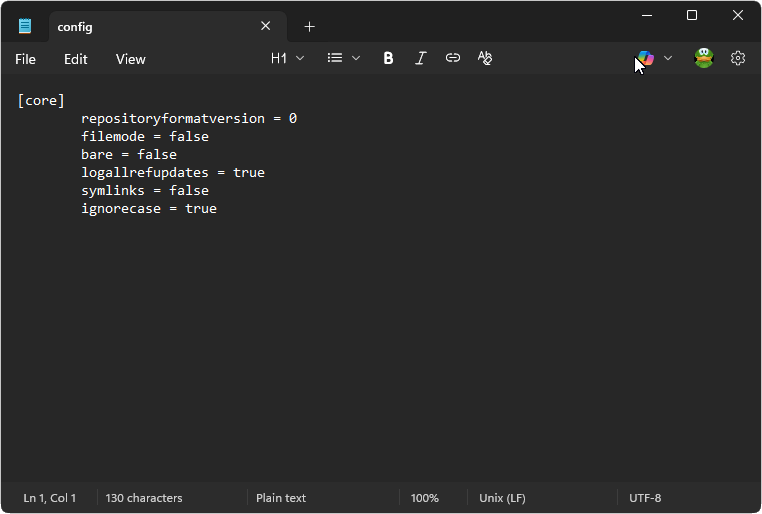
repositoryformatversion = 0
0 specifies the internal format version used by Git for the repository. It’s a standard, non-alarming setting that simply tells the Git software how to interpret the files within the .git directory.
filemode = false/true
🚀Permissions Matter.
When you use Git, it normally tracks the content of your files. But it also tracks some metadata, like whether a file is marked as executable (meaning a script or program can be run directly).
The fileMode setting in your Git configuration controls whether Git pays attention to these specific file permissions.
🔑 The Key Setting
You’ll find this setting in your repository’s .git/config file under the [core] section. This setting essentially tells Git: “Should I care if someone uses chmod +x?”
1. filemode = true (Default on Linux/Mac)
- What it means: Git will track changes to a file’s executable status.
- The Scenario: If you write a script (
my_script.sh) and then use the commandchmod +x my_script.shto make it runnable, Git sees this as a modification and requires a commit. - Best For: Linux and macOS users, where the executable bit is critical for running scripts.
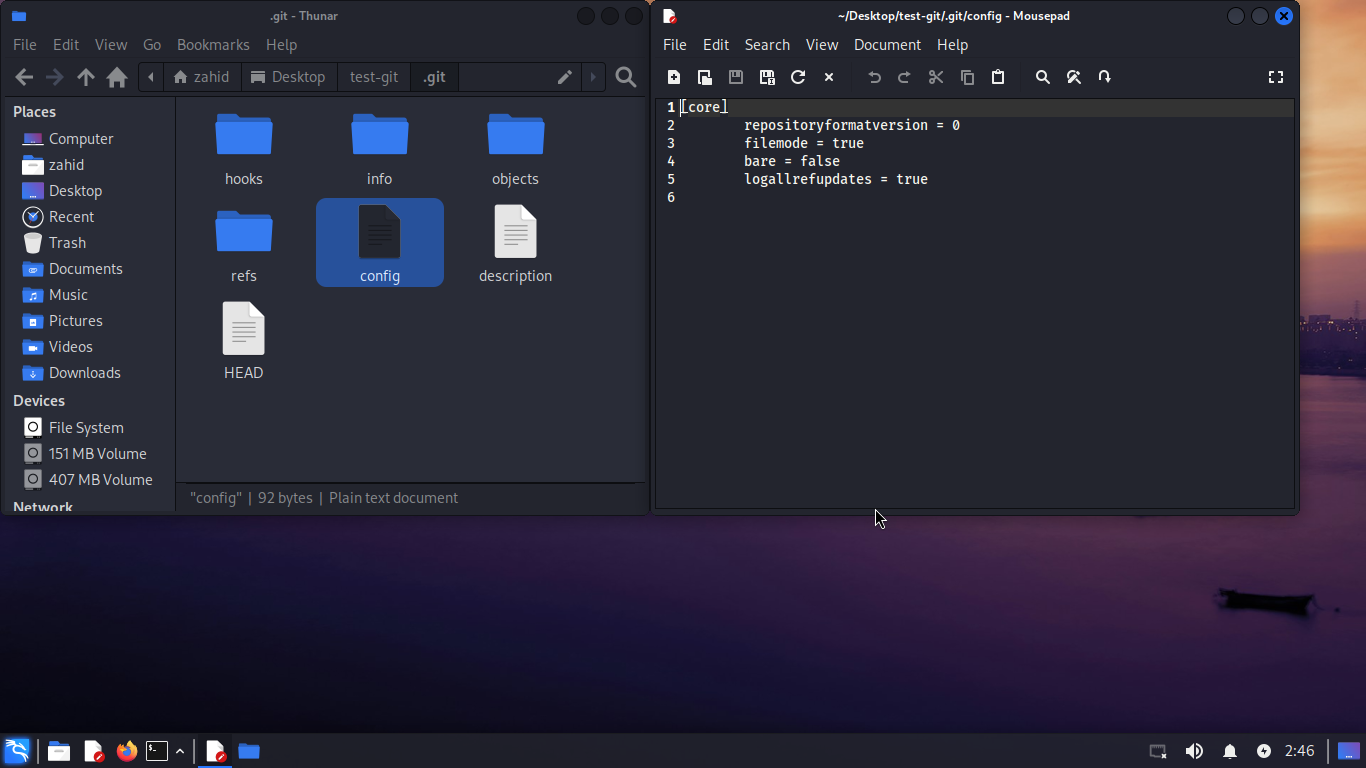
2. filemode = false (Default on Windows)
- What it means: Git will ignore changes to a file’s executable status. It only tracks changes to the file’s actual content.
- The Scenario: You can change permissions all you want, but Git won’t notice or record it in a commit.
- Best For: Windows users, or teams working across different operating systems (cross-platform projects).
💡 Why Windows Needs It
Windows filesystems (like NTFS) handle permissions differently than Unix. If filemode is true on Windows, Git often reports confusing “phantom” changes in file permissions. Setting it to false is a common fix to keep your git status clean!
⚙️ Summary Table
| Setting | Git Action | Best Used On | Key Reason |
|---|---|---|---|
filemode = true | Tracks file executability. | Linux, macOS | Executable status is reliable and functionally important. |
filemode = false | Ignores file executability. | Windows, Cross-Platform | Avoids unreliable or confusing permission changes on Windows. |
🛠️ How to Change the Setting
If you ever need to turn this setting off for a specific repository (e.g., to stop tracking permissions in that project), you can run this command:
1
git config core.fileMode false
⚙️ Other Useful Config Settings
Beyond filemode, Git’s config file often includes a few more options that shape how your repository behaves:
logallrefupdates = true
Keeps logs of all reference updates (branches, tags, etc.), not justHEAD. Handy for tracing history or recovering if something changes unexpectedly.symlinks = false
Tells Git not to treat symbolic links as real symlinks. Instead, they’re stored as normal text files. This avoids issues on Windows, where symlinks aren’t handled the same way as Unix systems.ignorecase = true
Makes Git treat file names as case‑insensitive. SoREADME.mdandreadme.mdare considered the same file. This prevents conflicts on case‑insensitive filesystems like Windows or macOS.
🎯 Wrap‑Up
The hidden .git folder isn’t something you need to touch every day, but knowing what’s inside helps you troubleshoot, customize, and collaborate more effectively. From filemode to ignorecase, these small settings can make a big difference across operating systems. As you add files and evolve your repo, keep an eye on these configs — they’re the quiet guardians of your project’s stability.